Voice & Speech
Generate dialogue audio for your screenplay characters using text-to-speech (TTS) providers.
Overview
Khaos Machine integrates TTS providers to bring your characters to life with voice. The workflow is:
- Browse the voice catalog to find suitable voices.
- Cast a voice to each character.
- Generate dialogue audio — individual lines or full scenes.
- Preview the results in the story player.
Supported TTS Providers
The voice catalog includes 622 voices across 25+ providers:
| Provider | Type | Voices | Notes |
|---|---|---|---|
| OpenAI TTS | Cloud | 17 | High-quality neural voices (alloy, echo, fable, nova, shimmer, etc.) |
| ElevenLabs | Cloud | 62 | Premium cloned and synthetic voices |
| Azure TTS | Cloud | 31 | Microsoft neural voices |
| Google Cloud TTS | Cloud | 27 | Google neural voices |
| Amazon Polly | Cloud | 27 | AWS neural and standard voices |
| Cartesia | Cloud | 154 | Large library of synthetic voices |
| Deepgram | Cloud | 102 | Aura voice models |
| LMNT | Cloud | 44 | Low-latency neural voices |
| Gemini TTS | Cloud | 30 | Google Gemini voices |
| KittenTTS | Local | 16 | Ultra-lightweight local TTS (15–80M params) |
| Kokoro | Local | 24 | Local neural TTS |
| Voicebox | Local | 7 | Local speech synthesis (Qwen3-TTS) |
| Edge TTS | Free | 47 | Microsoft Edge voices (no API key) |
| Bark | Local | 13 | Suno Bark generative voices |
Cloud providers require API keys configured in Settings. Local providers run on your machine with no account needed.
Voice Catalog
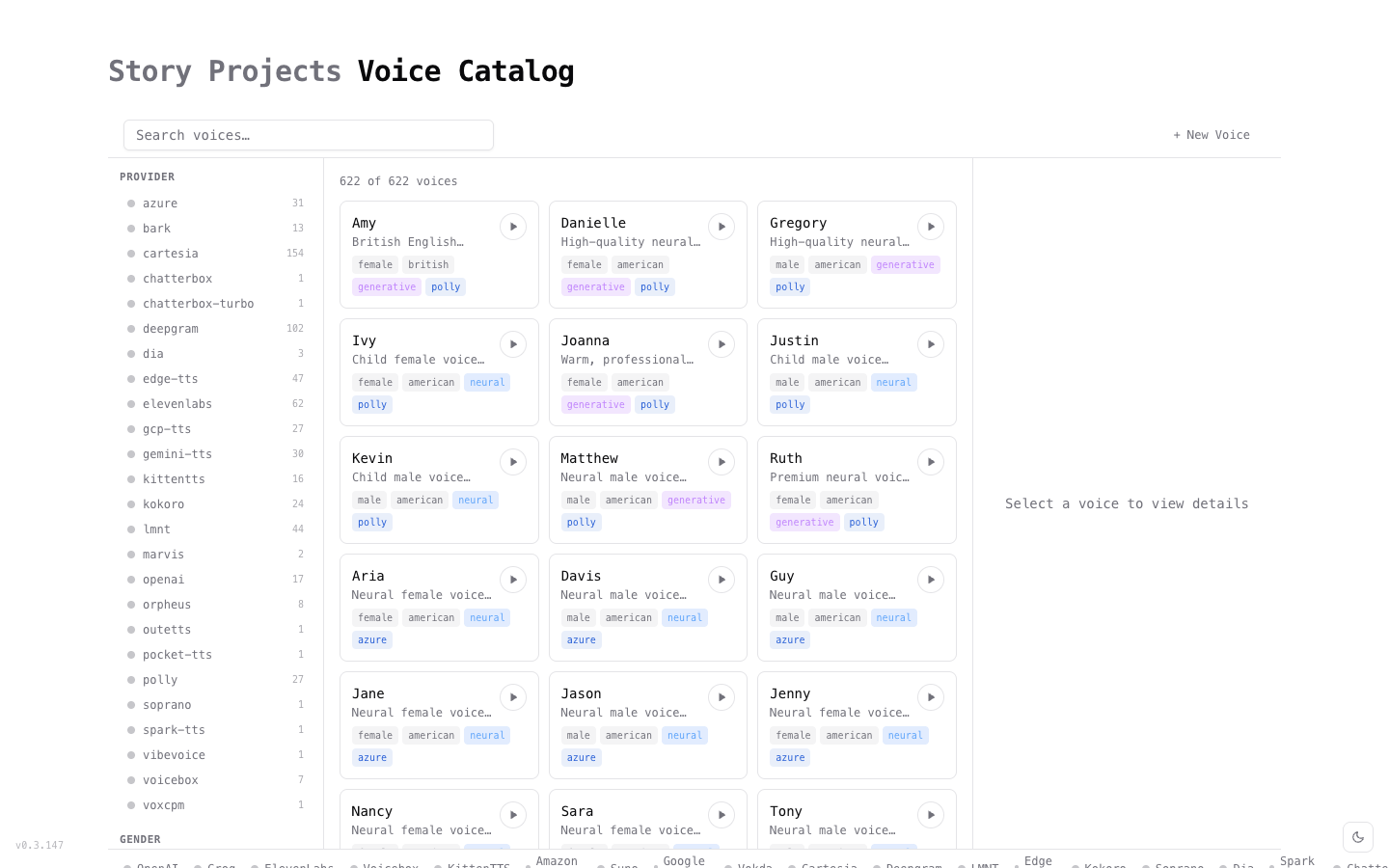
The voice catalog shows all available voices across your configured TTS providers. Access it from the Voices link in the dashboard header.
Each voice card shows:
- Name and short description
- Tags — gender, accent, voice type (neural, generative, standard)
- Provider badge
- Play button for instant audio preview
Use the left sidebar to filter by provider (25+ options) or gender. Use the search bar to find voices by name.
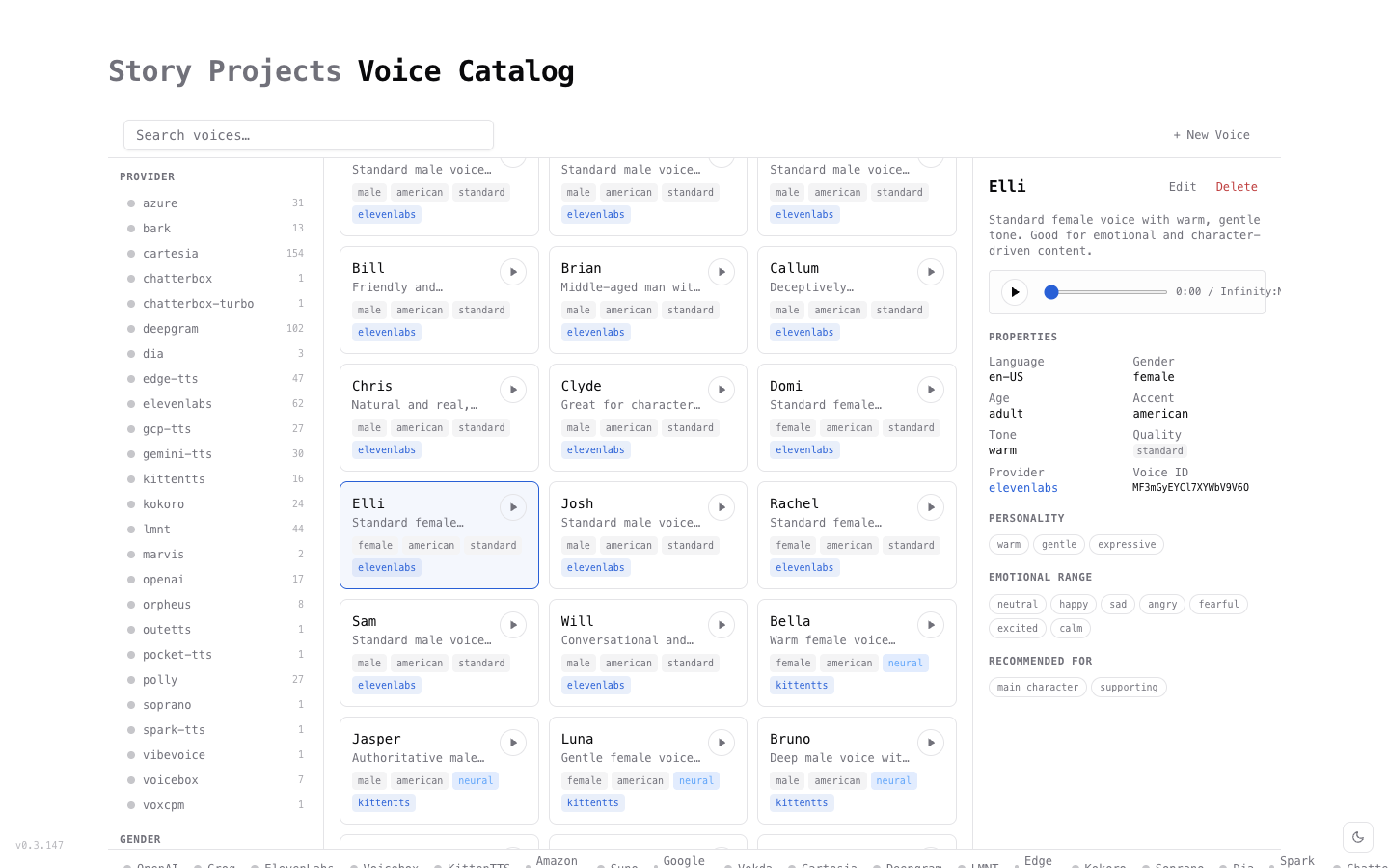
Click any voice to see full details:
- Audio preview with playback controls
- Properties — language, gender, age, accent, tone, quality, provider, Voice ID
- Personality tags — describes the voice's character (warm, gentle, authoritative, etc.)
- Emotional range — supported emotions (neutral, happy, sad, angry, fearful, excited, calm)
- Recommended for — suggested character types (main character, supporting, narrator)
Casting Voices
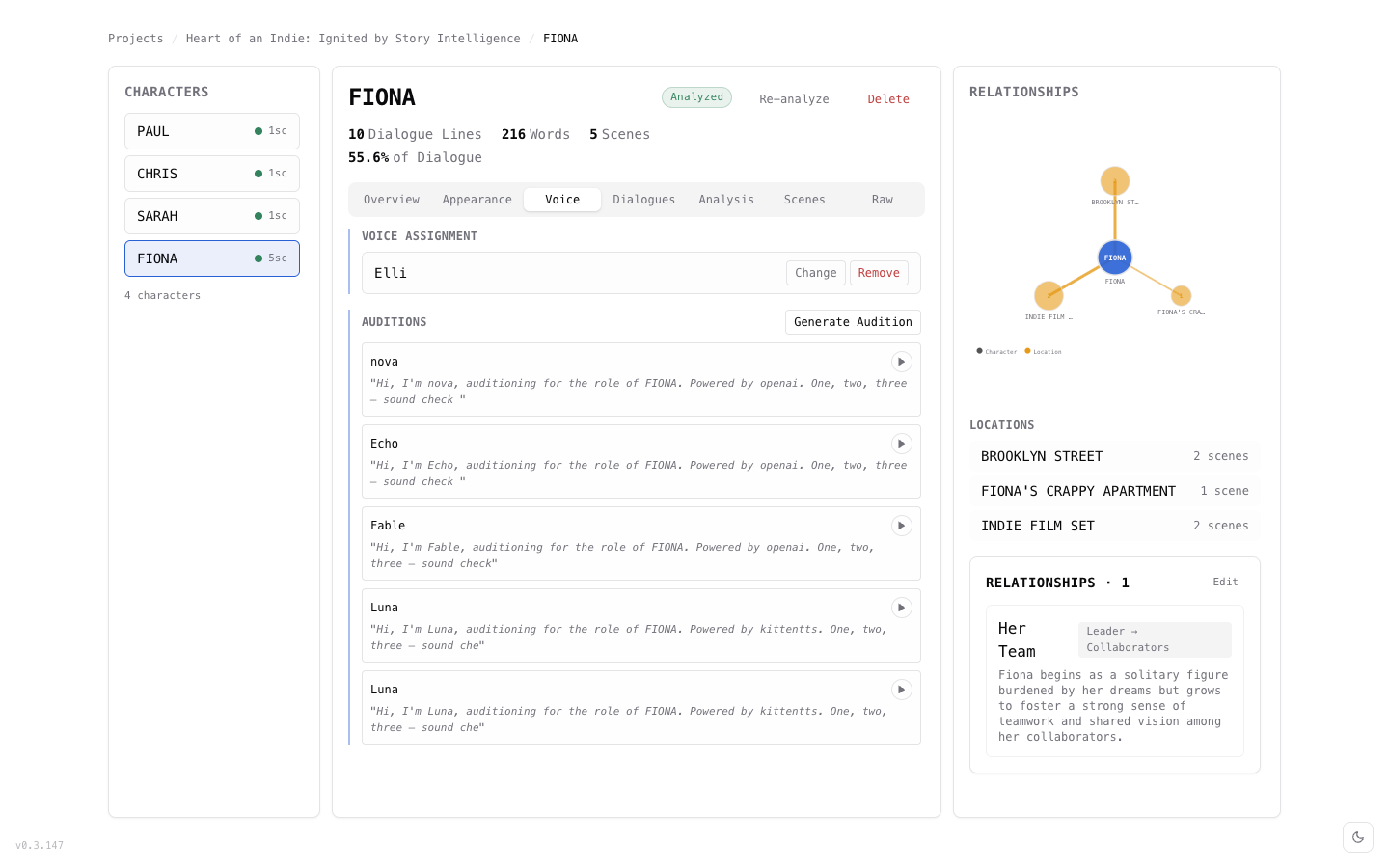
To assign a voice to a character:
- Open the Character Builder from the menu bar.
- Select a character from the list.
- Click the Voice tab.
- Click Change (or assign if none is set).
- Browse or search the voice catalog.
- Select a voice and confirm.
Each character can have one voice assigned at a time. You can change the casting at any time.
Auditions
Before committing to a voice, generate auditions to compare options:
- In the Character Builder, select a character and go to the Voice tab.
- Click Generate Audition.
- The system generates a sample clip for that character's dialogue using different voices.
- Each audition shows the voice name, provider, and a play button.
- Compare auditions side-by-side — they're kept until you delete them.
- When you find the right voice, assign it.
Auditions can span multiple providers (e.g., OpenAI nova vs. KittenTTS Luna), making it easy to compare cloud and local options.
Generating Dialogue Audio
Once voices are cast:
- Select a scene or character in the dashboard.
- Click Generate Audio to create dialogue clips.
- The system generates audio for each line of dialogue using the character's assigned voice.
- Progress is shown in the console.
Batch Generation
Generate audio for multiple scenes at once:
- Select scenes in the dashboard.
- Click Generate Audio for the selection.
- The workflow daemon processes scenes in the background.
Previewing in the Story Player
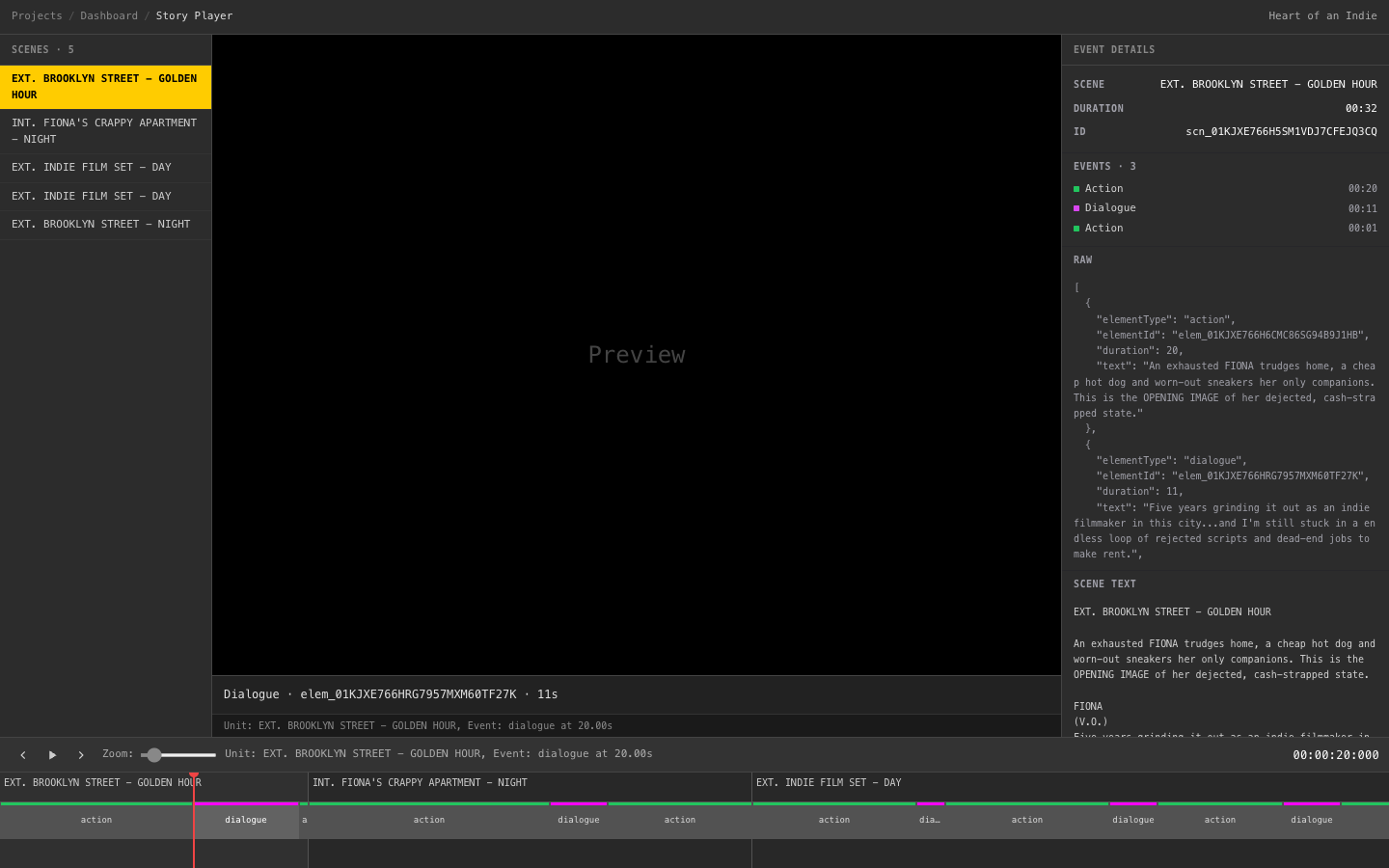
After generating audio, preview the results in the Story Player:
- Open the Story Player from the dashboard header or menu bar.
- Scenes are listed on the left — click to navigate.
- The timeline shows color-coded segments: green for action, pink for dialogue.
- Click any segment to see details — character name, dialogue text, duration, and event data.
- Use playback controls (previous/play/next) to step through the screenplay.
The Story Player brings together your screenplay text, AI analysis, voice casting, and generated audio into a unified playback experience.
Next Steps
- Screenplay Analysis — analyze scenes before generating audio
- AI Providers — configure TTS providers
- Background Services — monitor audio generation jobs