AI Providers
Configure your preferred AI provider for screenplay analysis. Khaos Machine supports both local and cloud providers — switch between them at any time without losing previous results.
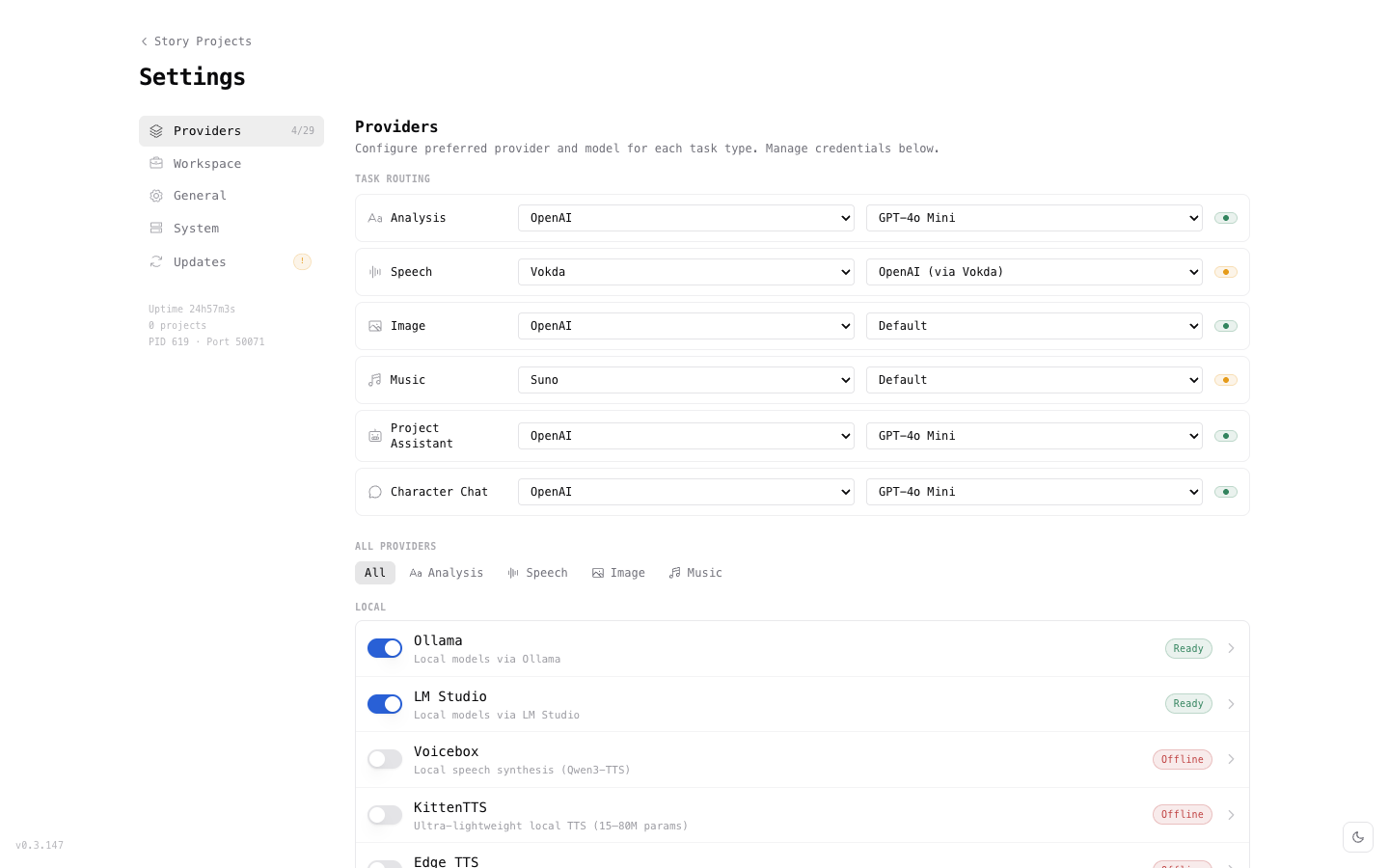
Provider Overview
| Provider | Type | Cost | Best For |
|---|---|---|---|
| Ollama | Local | Free | Privacy-first, offline work, no API key |
| LM Studio | Local | Free | GUI-based local model management |
| OpenAI | Cloud | Pay-per-use | GPT-4o, high-quality analysis |
| Anthropic | Cloud | Pay-per-use | Claude models, nuanced analysis |
| Mistral | Cloud | Pay-per-use | Fast, cost-effective European provider |
| Groq | Cloud | Free tier | Extremely fast inference |
Local Providers
Ollama
Ollama runs AI models locally on your machine. No account, no API key, no data leaves your disk.
Setup:
- Download and install Ollama from ollama.com.
- Pull a recommended model:
# Recommended for screenplay analysis
ollama pull qwen3:8b

# Alternative — larger, higher quality
ollama pull llama3:70b
- In Khaos Machine Settings, select Ollama as your provider.
- Choose your model from the dropdown.
Recommended models:
| Model | Size | Quality | Speed |
|---|---|---|---|
qwen3:8b | 5 GB | Good | Fast |
llama3:8b | 4.7 GB | Good | Fast |
llama3:70b | 40 GB | Excellent | Slow |
mistral:7b | 4.1 GB | Good | Fast |
Start with qwen3:8b — it provides good analysis quality with fast inference on most hardware.
LM Studio
LM Studio provides a desktop application for running local AI models. If you prefer a visual interface over Terminal commands, LM Studio is the better choice.
Setup:
- Download LM Studio from lmstudio.ai and install it.
- Open LM Studio and search for a model — we recommend qwen3 8b or llama 3 8b.
- Click the download button next to the model.
- Go to the Local Server tab (the ↔ icon) and click Start Server.
- In Khaos Machine Settings, you should see LM Studio with a green Ready badge.
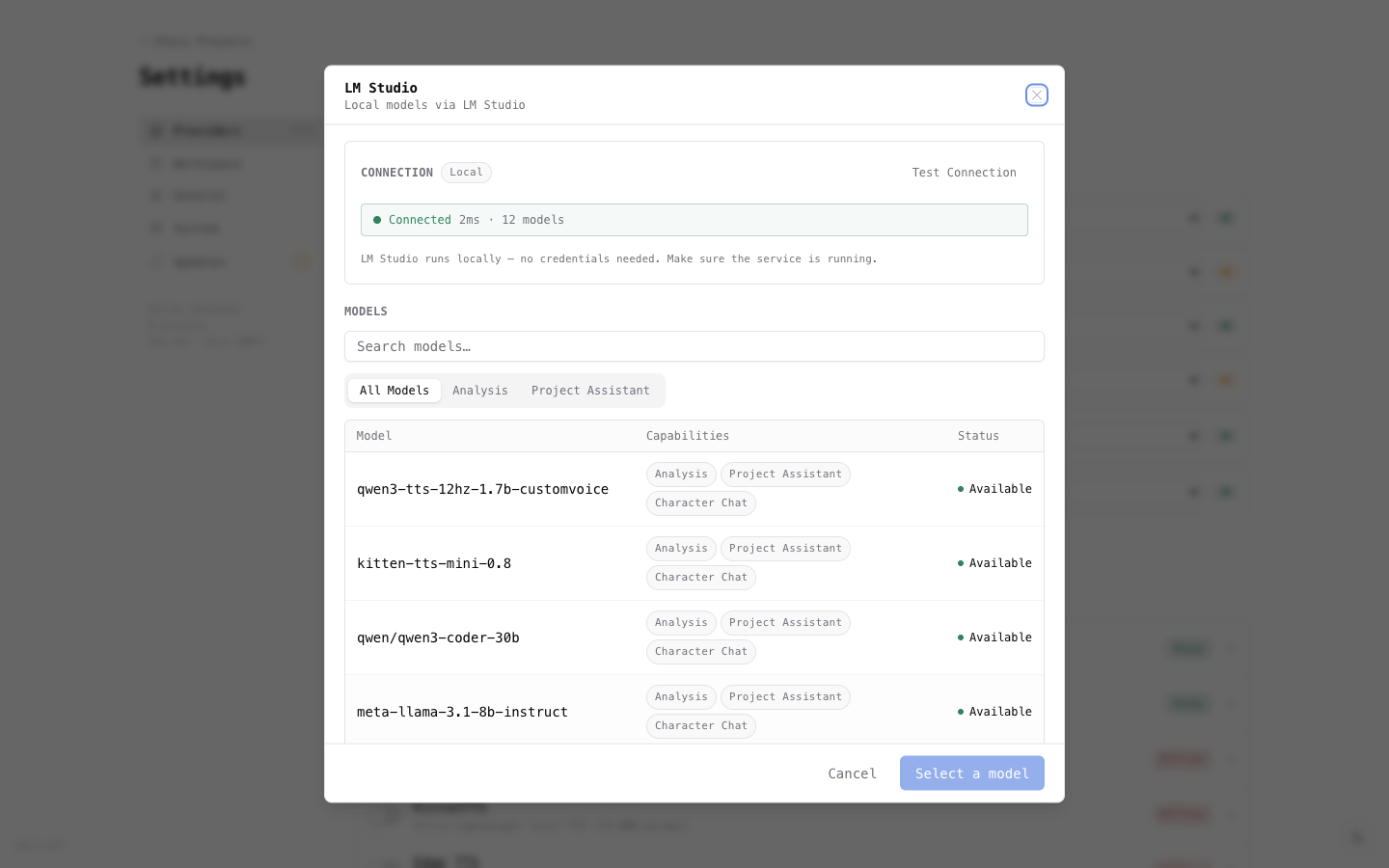
Keep LM Studio running with its server active while you use Khaos Machine. You can minimize the window, but don't quit the app.
LM Studio uses full model identifiers (e.g., qwen/qwen3-8b) rather than short names. Khaos Machine reads these automatically from the running server — just select the model from the dropdown in Settings.
Cloud Providers
Cloud providers require an API key. Your screenplay text is sent to their servers for processing — review each provider's privacy policy.
OpenAI
- Create an API key at platform.openai.com/api-keys.
- In Khaos Machine Settings, select OpenAI as your provider.
- Enter your API key.
- Choose a model —
gpt-4ois recommended for best results.
Anthropic
- Create an API key at console.anthropic.com.
- In Khaos Machine Settings, select Anthropic as your provider.
- Enter your API key.
- Choose a model —
claude-sonnet-4-20250514orclaude-3-5-sonnetrecommended.
Mistral
- Create an API key at console.mistral.ai.
- In Khaos Machine Settings, select Mistral as your provider.
- Enter your API key.
- Choose a model.
Groq
Groq offers extremely fast inference with a generous free tier.
- Create an API key at console.groq.com.
- In Khaos Machine Settings, select Groq as your provider.
- Enter your API key.
- Choose a model.
Switching Providers
Analysis results are stored per-provider, so switching providers never overwrites previous results. This lets you:
- Analyze with Ollama first (free, local), then re-analyze with GPT-4o for comparison.
- Try different models and compare analysis quality.
- Start with a fast provider for initial feedback, then use a more capable model for final analysis.
To switch providers:
- Go to Settings.
- Select a different provider and model.
- Run analysis again — new results are stored alongside existing ones.
API Key Storage
API keys are stored locally in ~/.khaos/keys.json with 0600 file permissions (owner-only read/write). Keys are never sent anywhere except to the configured provider's API endpoint.
Next Steps
- Screenplay Analysis — analyze your screenplay with your configured provider
- Troubleshooting — help with provider connection issues