Screenplay Analysis
Import a screenplay and run AI analysis to get deep insights into your scenes, characters, and locations.
Overview
The analysis workflow:
- Import — add a screenplay to a project
- Configure — choose an AI provider and model
- Analyze scenes — run scene analysis first
- Analyze characters and locations — these unlock after scene analysis
- Review results — explore analysis in the dashboard
Prerequisites
- Khaos Machine installed (Installation)
- A screenplay file (
.fountain,.fdx,.sbx,.md,.pdf, or.txt) - An AI provider configured (AI Providers)
Importing a Screenplay
Web Dashboard
- Click the Khaos Machine menu bar icon and select Projects.
- Click New Project.
- Name your project and import your screenplay file.
Terminal Interface
khaos-tui
Select Import Screenplay and follow the import wizard — it walks you through file selection, format detection, and project setup.
CLI
khaos-tools parse --input my-screenplay.fountain --output ~/my-project
The parser extracts scenes, characters, locations, and dialogue automatically. This happens in seconds for most screenplays.
Running Analysis
Scene Analysis
Start with scenes — they're the foundation for character and location analysis.
- Open your project's Dashboard.
- Click Analyze All Scenes or select specific scenes.
- Watch progress in the console as each scene completes.
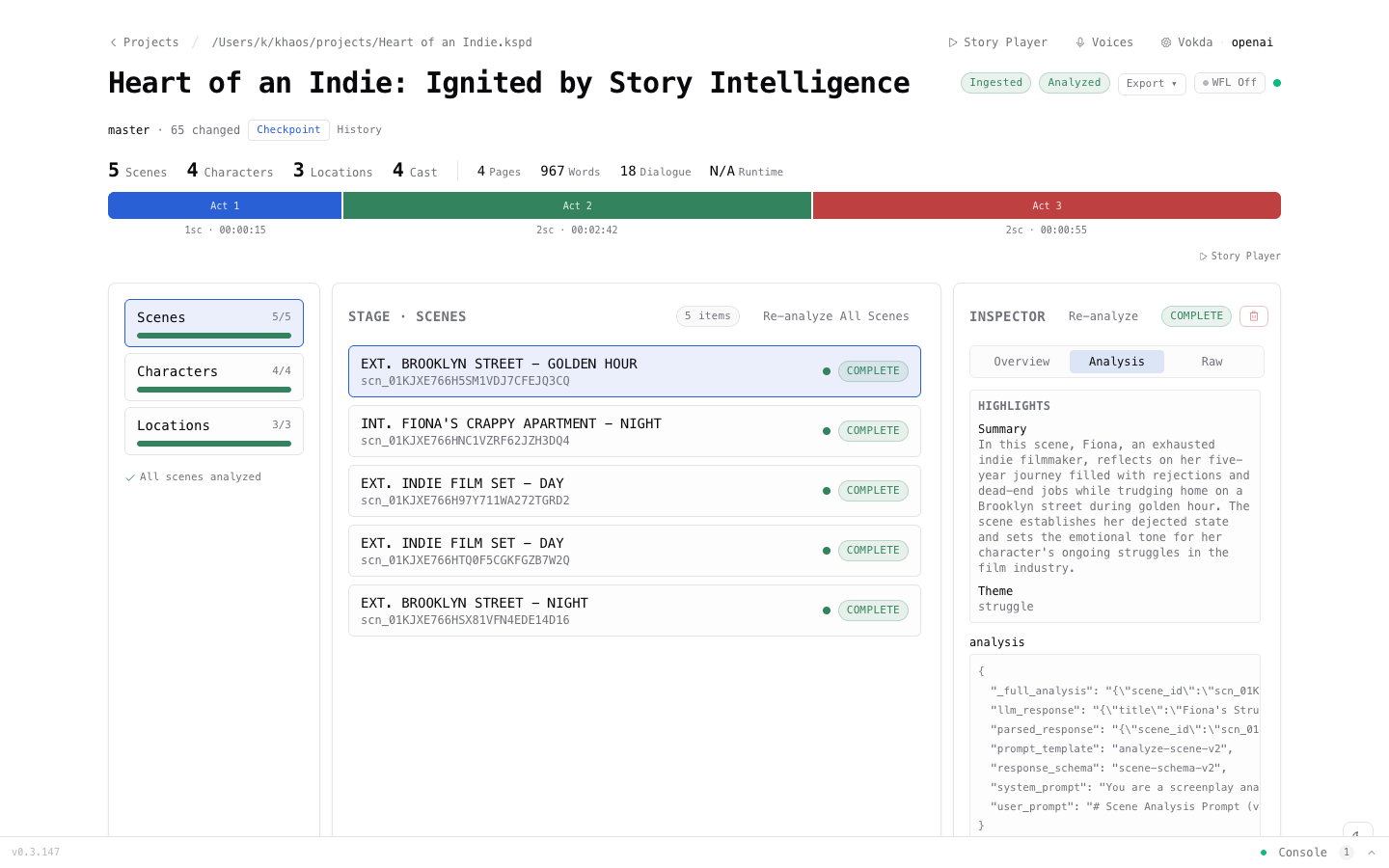
Each scene analysis includes:
- Dramatic beats — exposition, conflict, revelation, climax, turning points
- Mood and pacing — emotional tone and rhythm
- Themes — narrative themes present in the scene
- Emotional arc — how emotion shifts through the scene
- Narrative context — how the scene fits the overall story
Character Analysis
After scenes are analyzed, character analysis becomes available:
- Navigate to the Characters section or open the Character Builder.
- Click Analyze or Re-analyze to run character analysis.
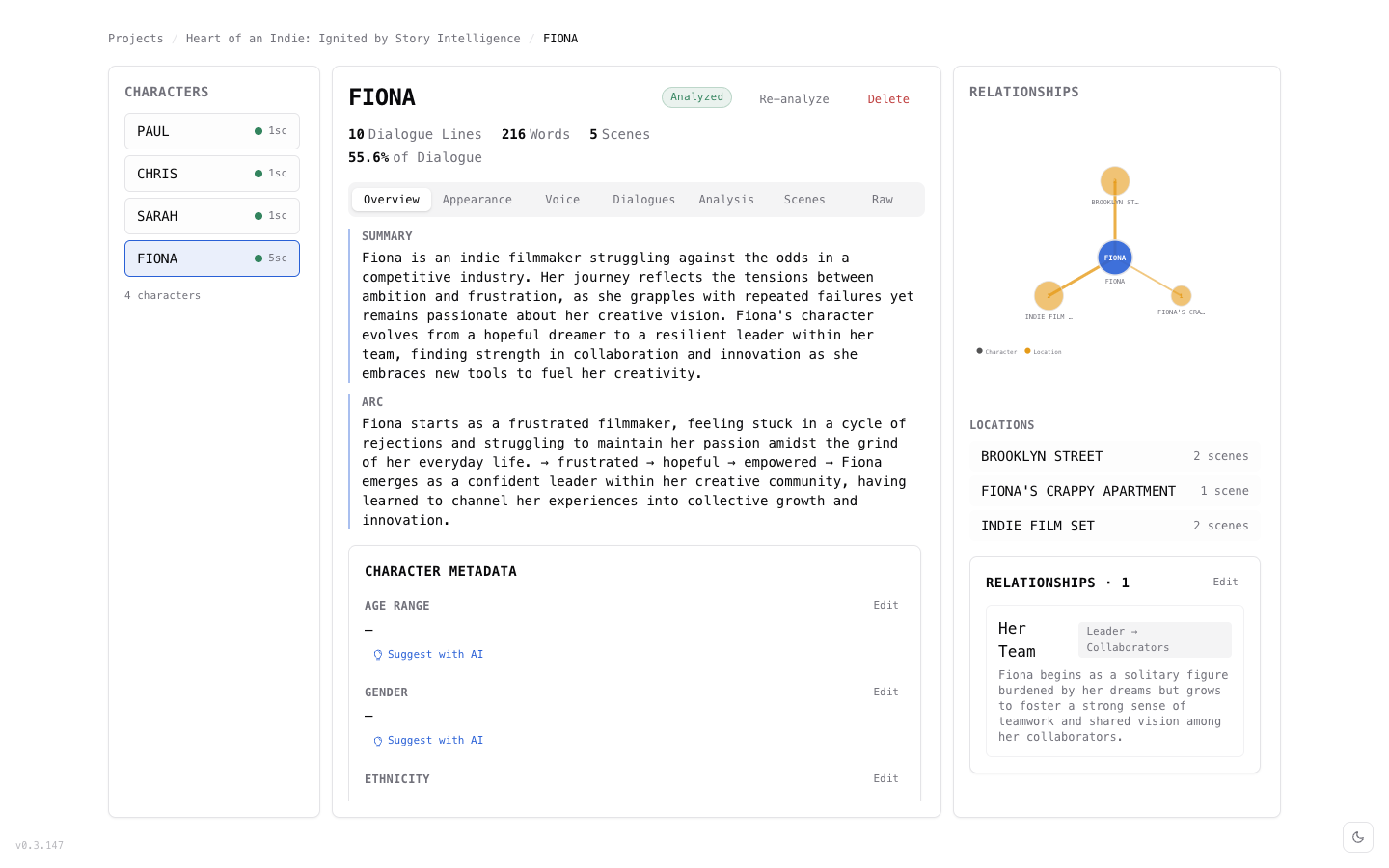
Each character analysis includes:
- Summary — AI-generated character description and narrative role
- Character arc — how they change through the story (e.g., frustrated → hopeful → empowered)
- Goals and conflicts — what drives them, wants and fears
- Relationships — interactive graph showing connections to other characters and locations
- Dialogue analysis — voice style, function, subtext
- Dialogue statistics — word count, line count, scene appearances
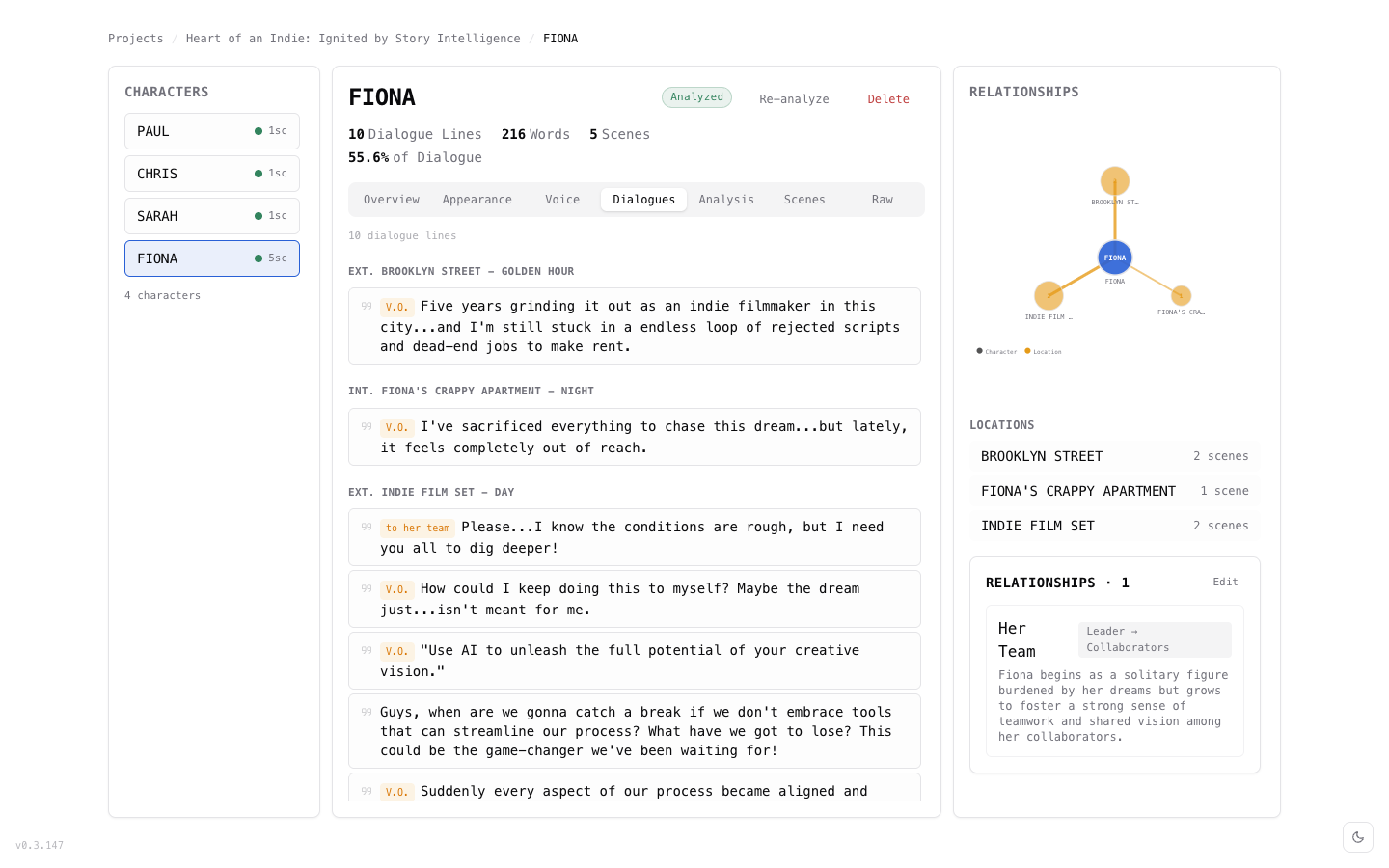
The Dialogues tab in the Character Builder shows every line for that character, grouped by scene — making it easy to review voice consistency and dialogue flow.
Location Analysis
Similarly, location analysis unlocks after scene analysis:
- Atmosphere and visual details
- Symbolism — what the location represents
- Narrative significance — role in the story
- Usage patterns — which scenes and characters appear here
Batch Analysis
For larger screenplays, use batch analysis to process all entities at once:
- Click Analyze All in the dashboard.
- The workflow daemon processes entities in the background.
- Progress is tracked per-entity in the console.
- Results appear as each entity completes — no need to wait for everything.
Incremental Analysis
Khaos Machine uses entity gating for efficient re-analysis:
- If you re-import an updated screenplay, only changed entities are re-analyzed.
- Unchanged scenes, characters, and locations keep their existing analysis.
- This saves time and API costs when iterating on your screenplay.
Comparing Providers
Results are stored per-provider, so you can compare analyses from different AI models:
- Analyze with one provider (e.g., Ollama with
qwen3:8b). - Switch to another provider in Settings (e.g., OpenAI with
gpt-4o). - Run analysis again.
- Both sets of results are preserved — compare them in the dashboard.
Tips
- Start local — use Ollama or LM Studio for your first analysis (free, fast feedback).
- Analyze scenes first — character and location analysis depends on scene results.
- Trust your instincts — AI analysis is one perspective, not the final word on your story.
Next Steps
- Signal Management — work with analysis feedback systematically
- Voice & Speech — generate dialogue audio from analysis
- AI Providers — try different providers for comparison