Web Dashboard
The web dashboard is the primary graphical interface for Khaos Machine. It opens in your browser and is served by the khaosd daemon — no internet connection required.
Launching
- macOS: Click the Khaos Machine icon in your menu bar. Select Projects, Dashboard, or Console to open the corresponding view.
- Linux: Open from your application launcher.
- Windows: Run
khaosd-ctl startfrom PowerShell.
Menu Bar App (macOS)
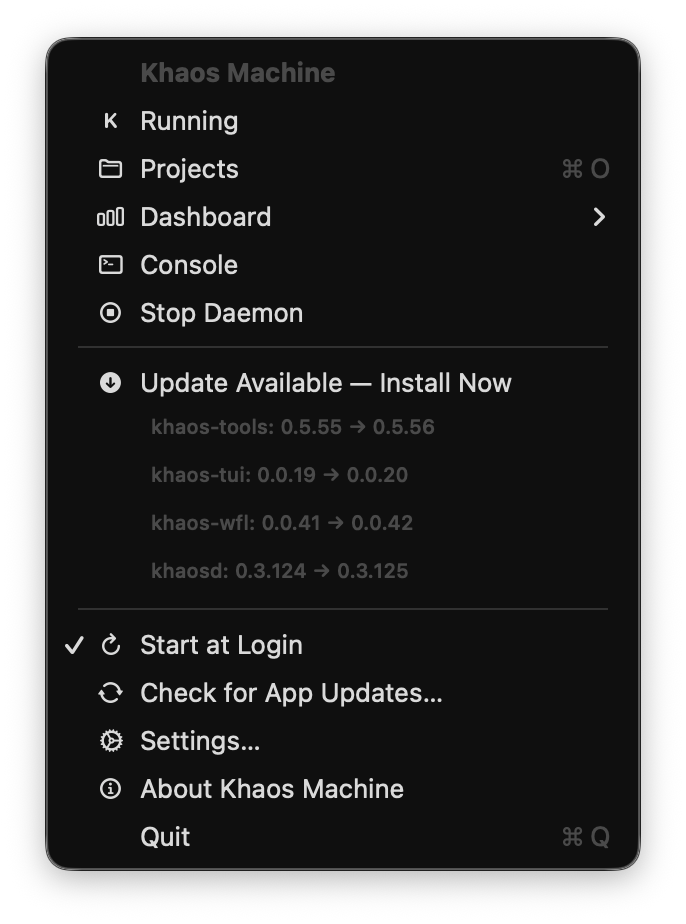
The menu bar app is your main entry point on macOS. It shows:
- Running status — confirms the daemon is active
- Projects (⌘O) — open the project browser
- Dashboard — submenu with per-project quick access
- Console — live log output
- Stop Daemon — gracefully shut down background services
- Update Available — one-click component updates when available
- Start at Login — toggle auto-launch on system boot
- Settings / About / Quit
Views
Projects
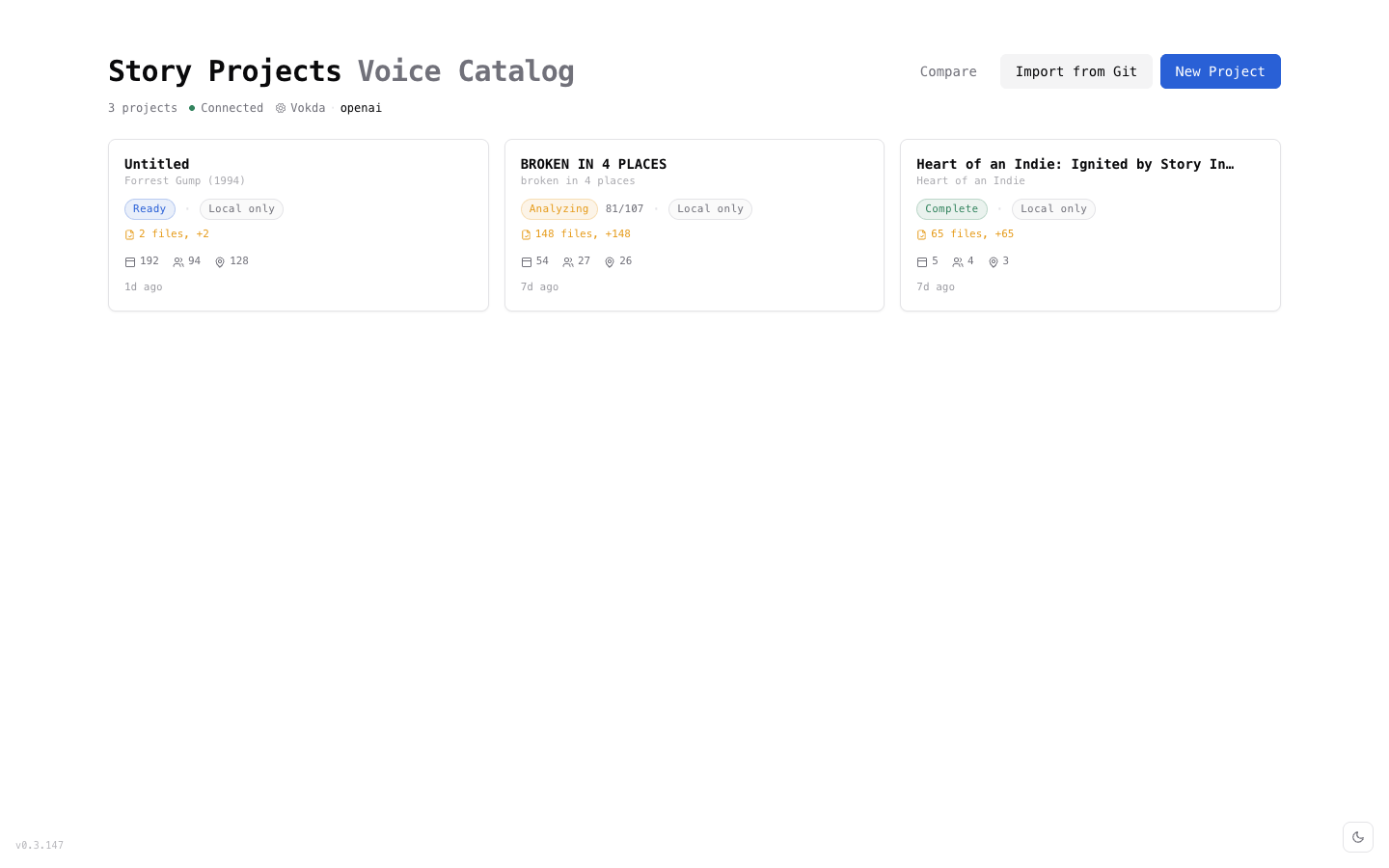
The landing page. Shows all your screenplay projects with:
- Project name and screenplay title
- Scene, character, and location counts
- Analysis progress
- Last modified timestamp
Click a project to open its dashboard.
Dashboard
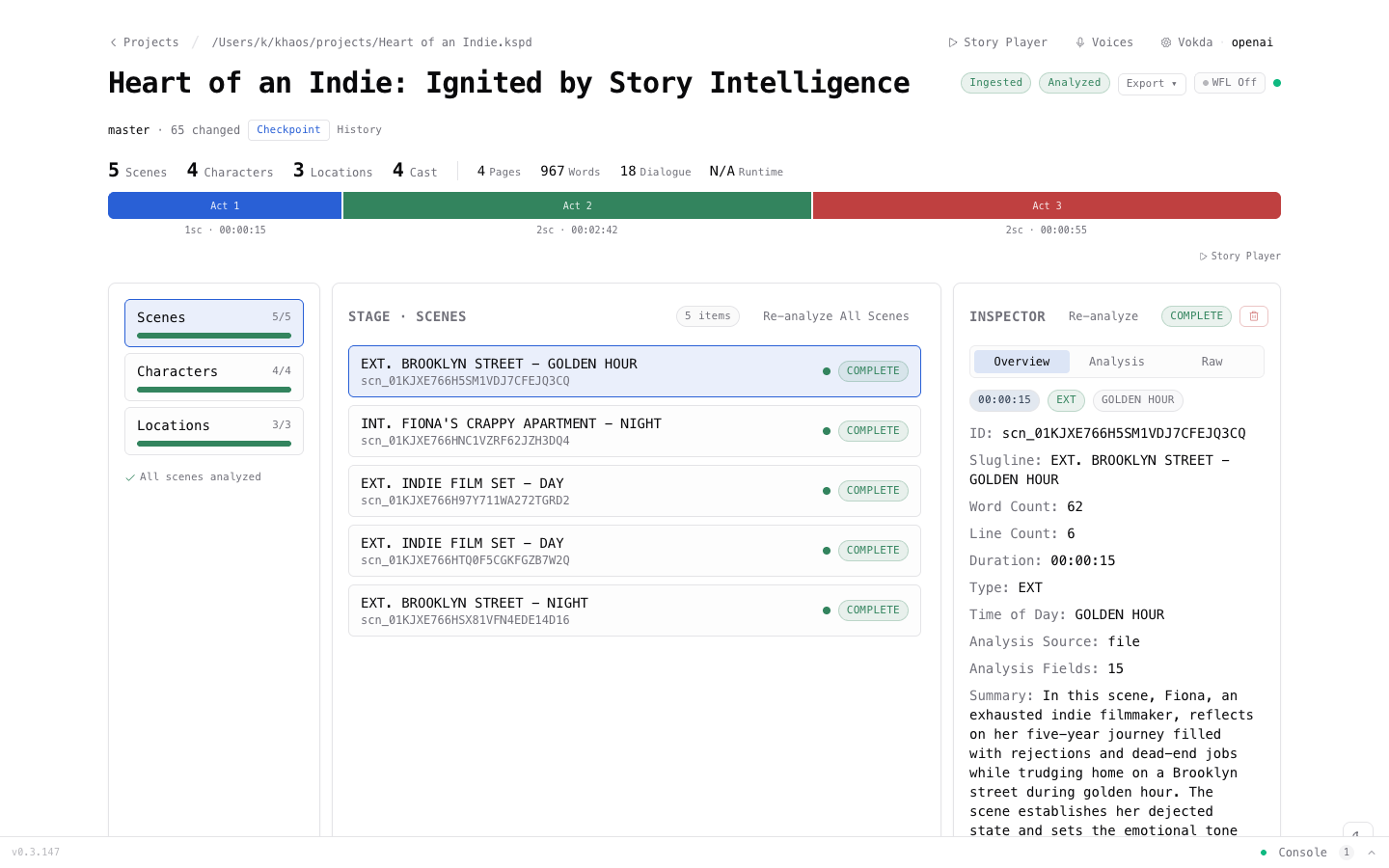
The main workspace for a project. Displays:
- Scene list with analysis status
- Character list with dialogue statistics
- Location list with scene associations
- Analysis results — click any entity to see its full analysis
From here you can run analysis, view results, and manage your project.
Settings
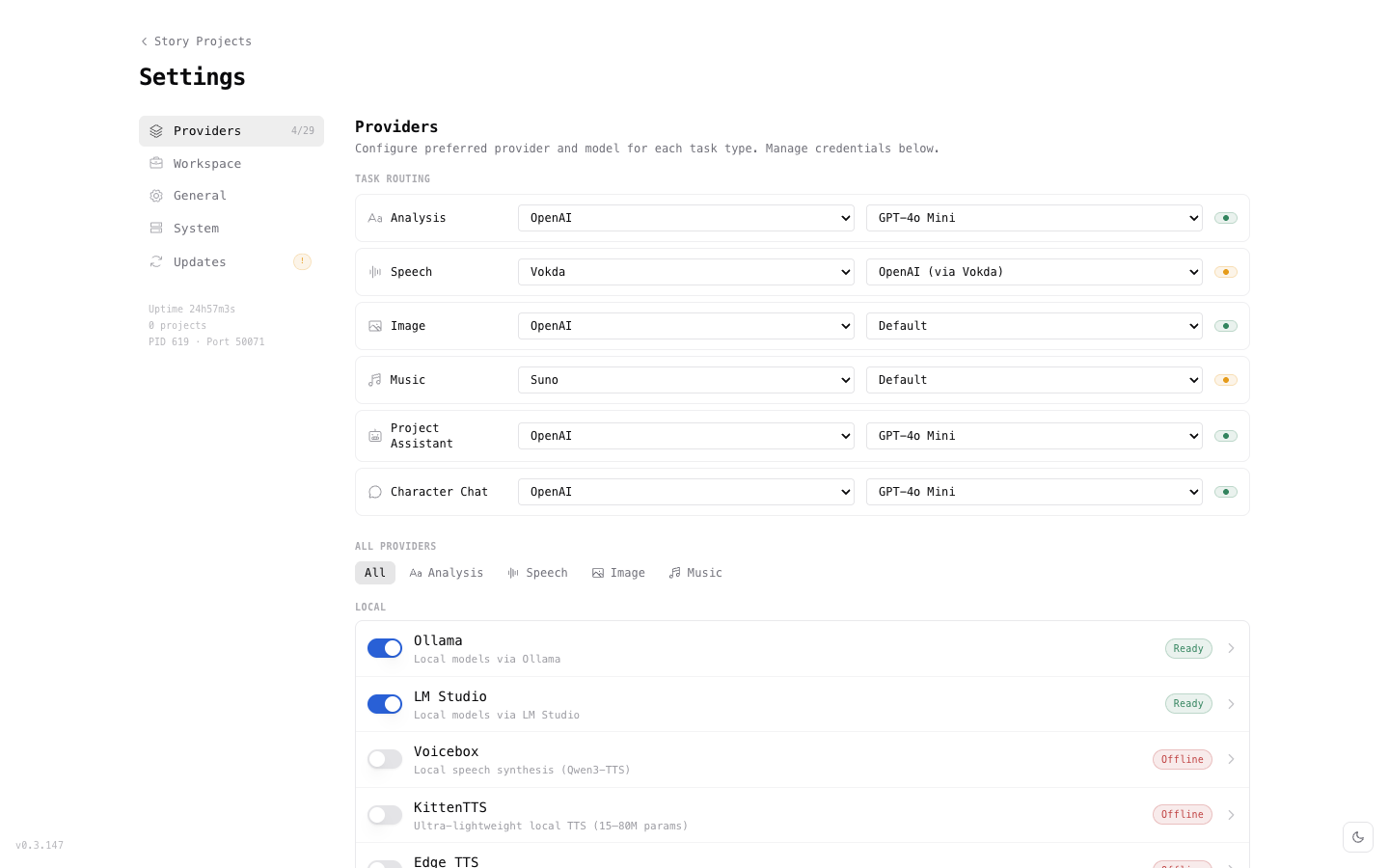
Configure Khaos Machine:
- AI Provider — select provider and model
- API Keys — enter keys for cloud providers
- Preferences — display and behavior settings
Console
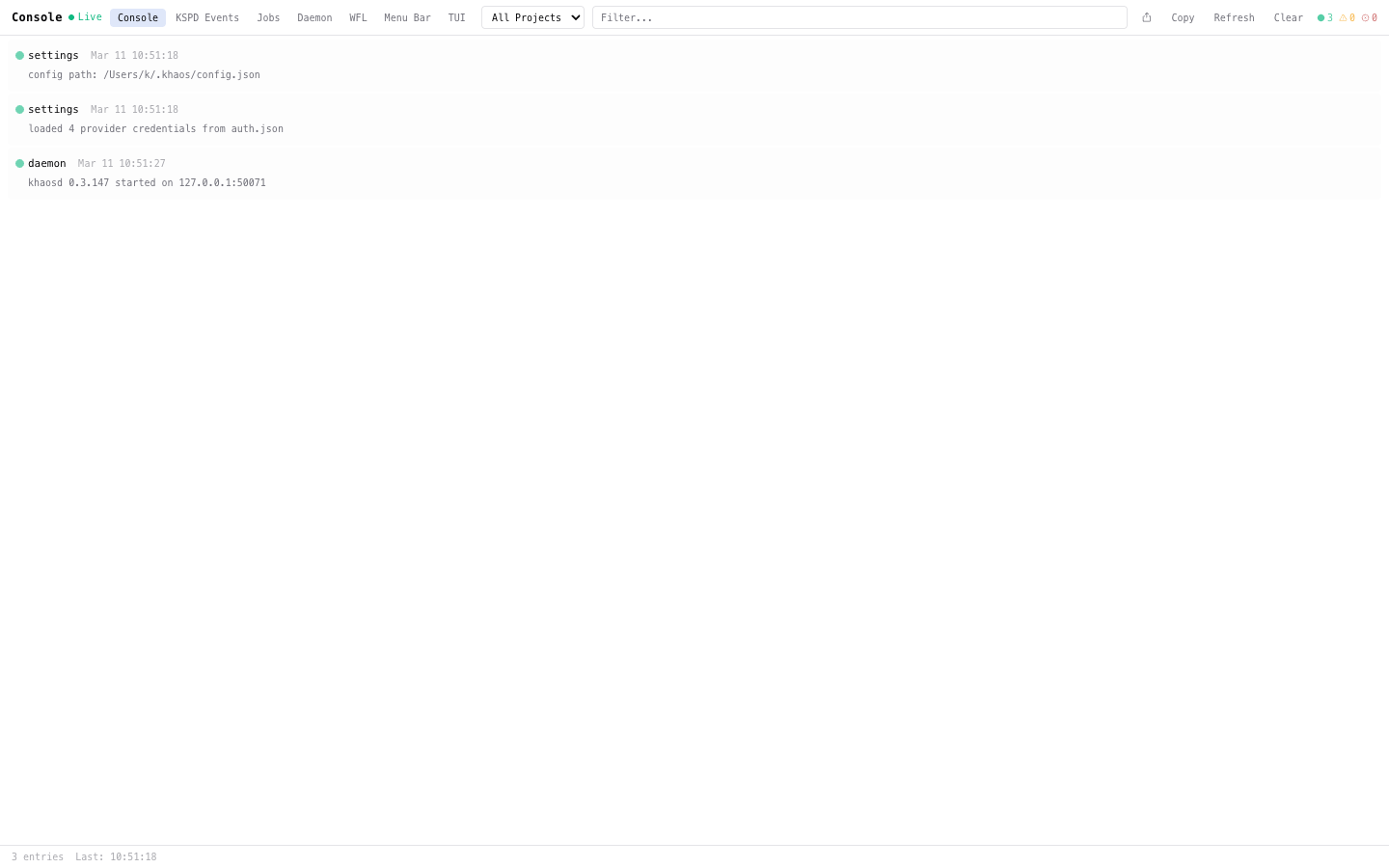
Live log output with multiple tabs:
- Console — analysis job progress and daemon events
- KSPD Events — project data change events
- Jobs — active and completed job status
- Daemon / WFL / Menu Bar / TUI — component-specific logs
Filter by project and severity. Useful for monitoring long-running batch analysis jobs.
Character Builder
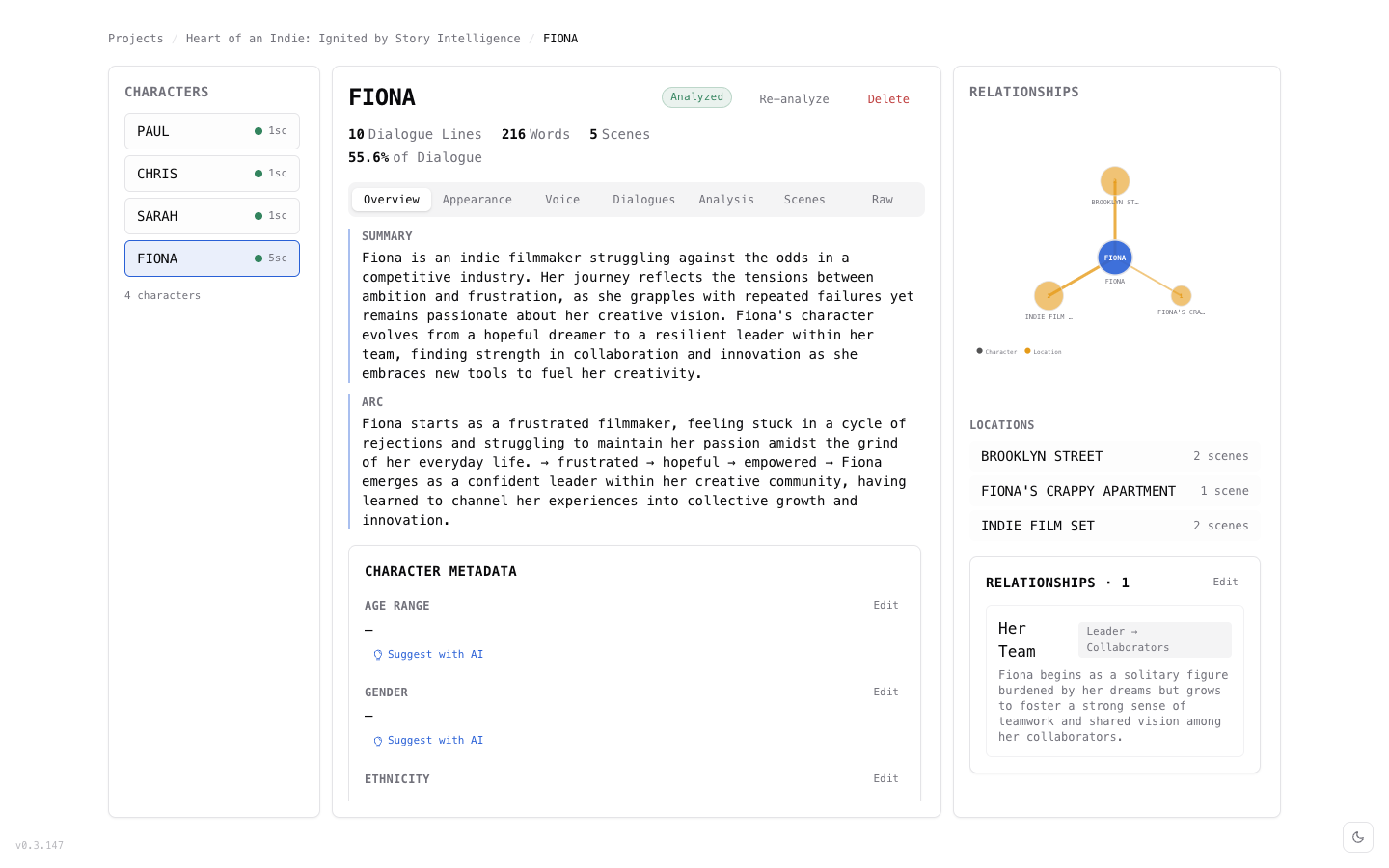
Deep character development workspace:
- Overview — AI-generated summary, character arc, metadata (age, gender, ethnicity), and "Suggest with AI" for unfilled fields
- Appearance — visual description and AI-generated character artwork
- Voice — assign a voice from the catalog, generate auditions to compare voices
- Dialogues — browse all character dialogue grouped by scene, with V.O. and direction markers
- Analysis — full AI analysis output
- Scenes — every scene the character appears in
- Relationships — interactive graph showing character connections with locations
The right sidebar shows a relationship graph and location breakdown at a glance.
Voice Casting & Auditions
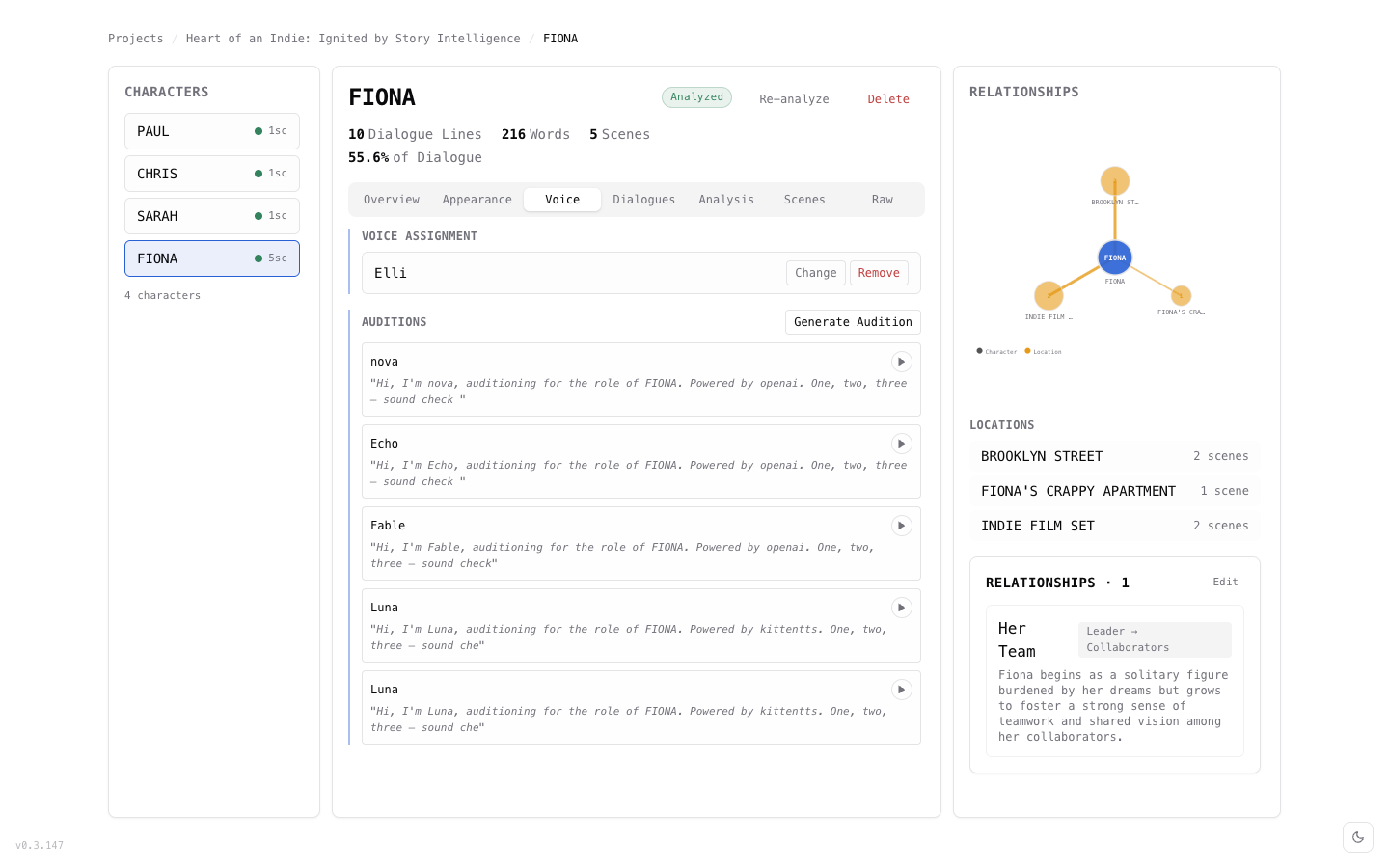
The Voice tab lets you:
- Assign a voice from the catalog (shown as current assignment with Change/Remove)
- Generate Auditions — create sample clips with different voices to compare
- Each audition shows the voice name, provider, and a play button for instant preview
- Auditions span providers (e.g., OpenAI and KittenTTS side by side)
Story Player
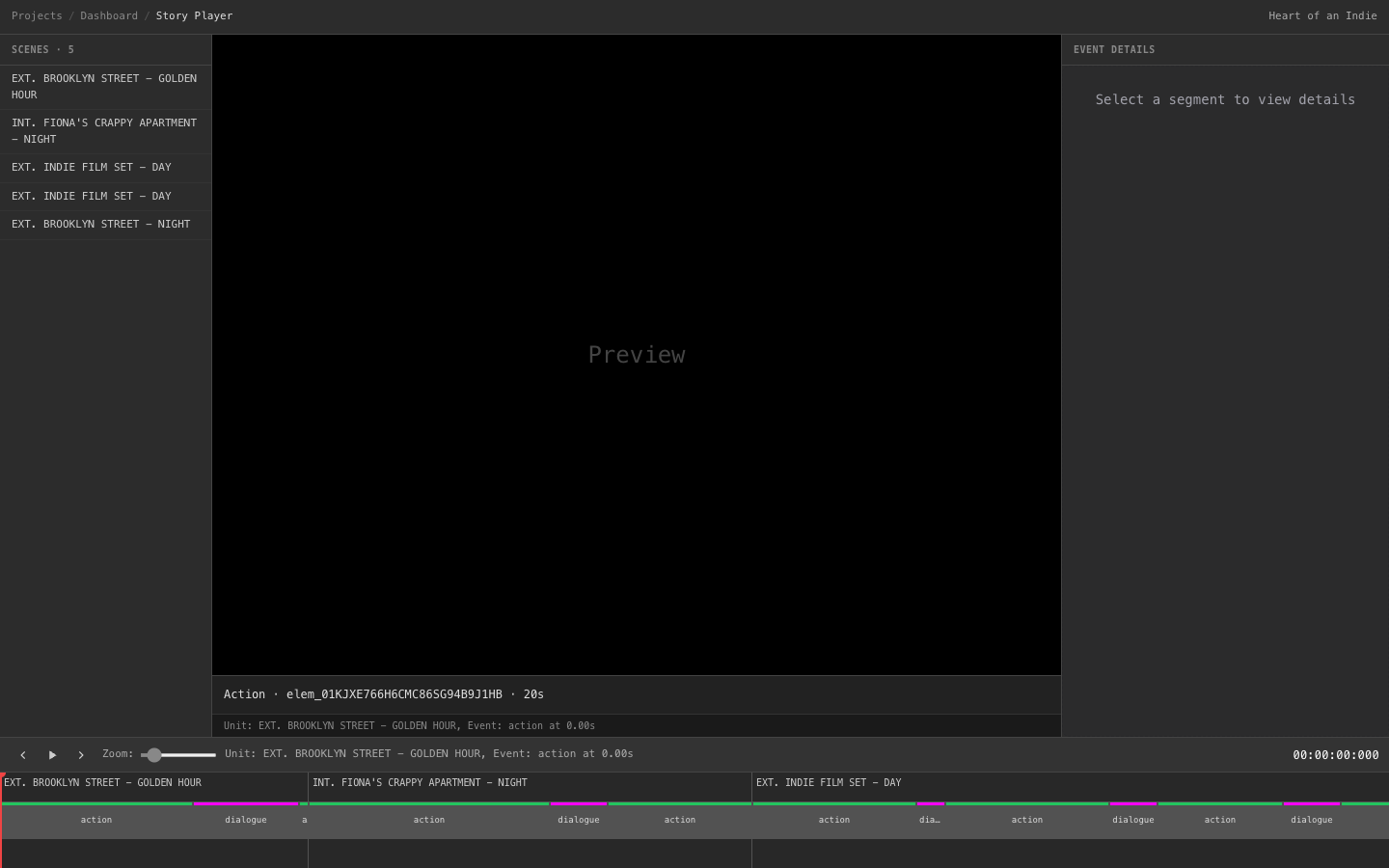
Timeline-based composition player for your screenplay:
- Scene list on the left — click to navigate
- Preview area — visual preview of the current segment
- Timeline — color-coded segments: green for action, pink for dialogue
- Playback controls — previous/play/next with zoom slider
- Timecode — precise position tracking
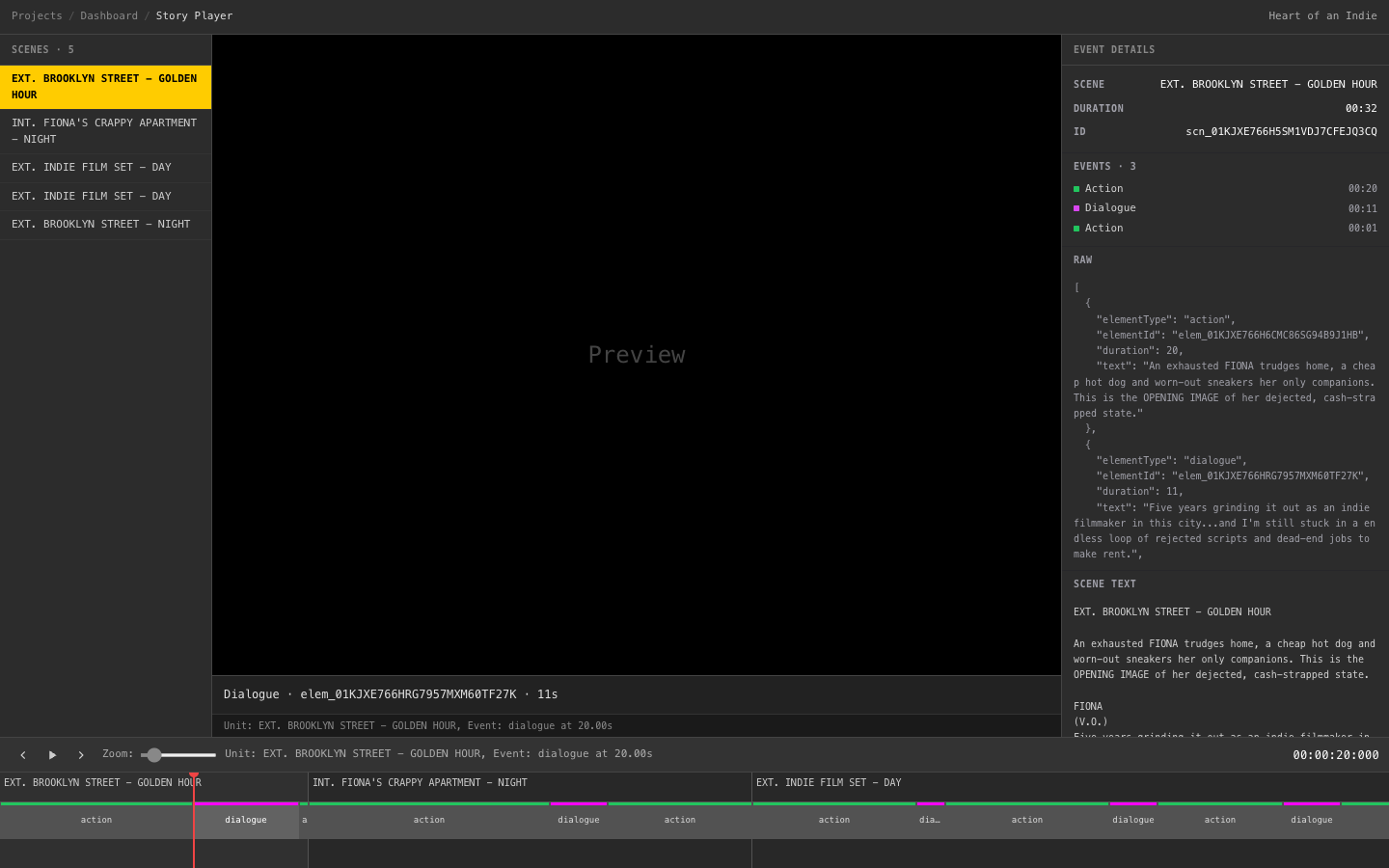
Click any segment to see full details in the right panel:
- Scene name and total duration
- Events list — each action and dialogue segment with timing
- Raw composition event data (JSON)
- Scene text — the original screenplay text for context
- Character dialogue — who's speaking, with V.O. or direction markers
Voice Catalog
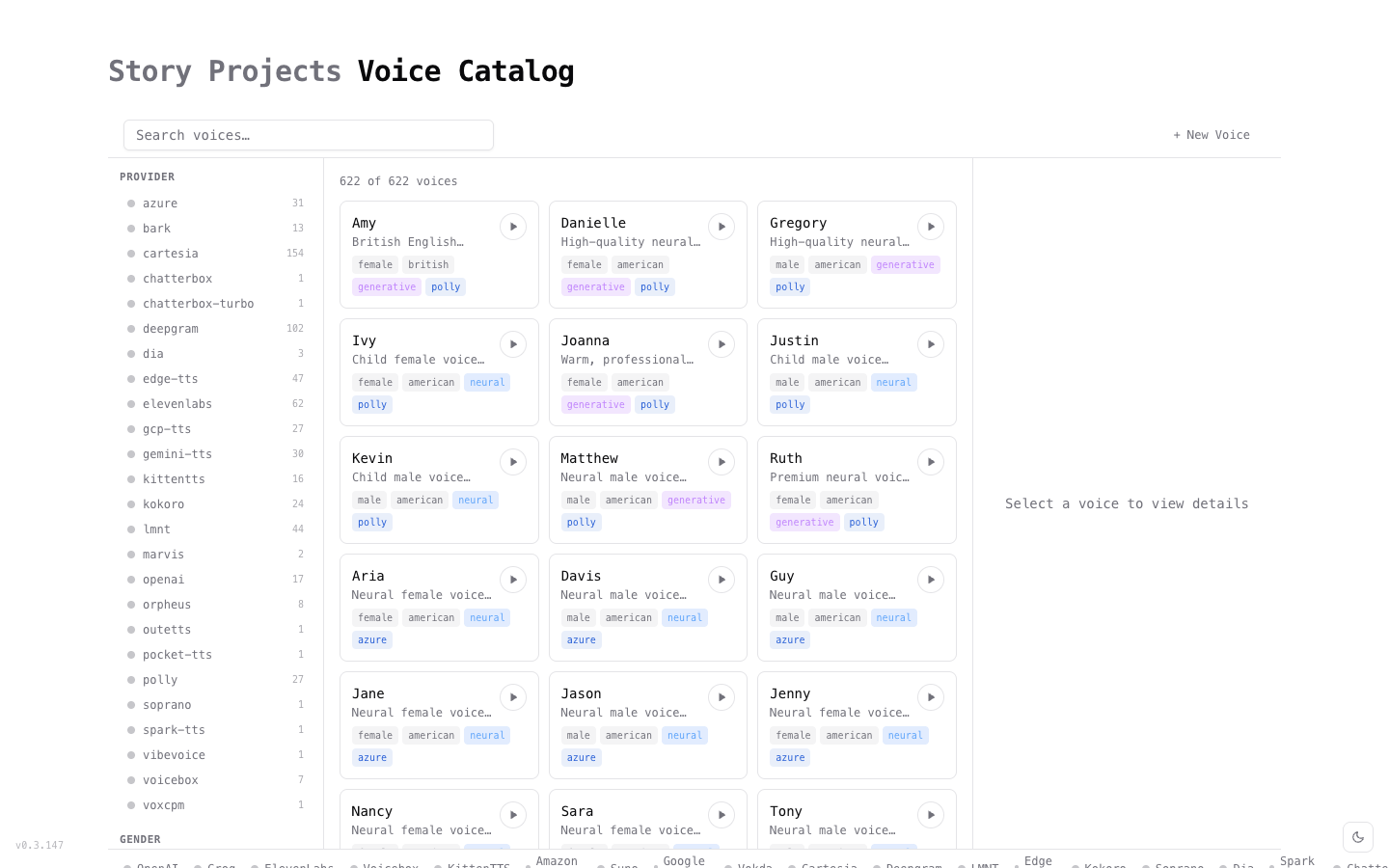
Browse and manage the full voice library:
- 622 voices across 25+ TTS providers (OpenAI, ElevenLabs, Azure, Google, Cartesia, Deepgram, KittenTTS, Kokoro, LMNT, Bark, and more)
- Search by name, filter by provider and gender
- Each voice card shows name, description, tags (gender, accent, quality type), and a play button for instant preview
- Click + New Voice to add custom voice profiles
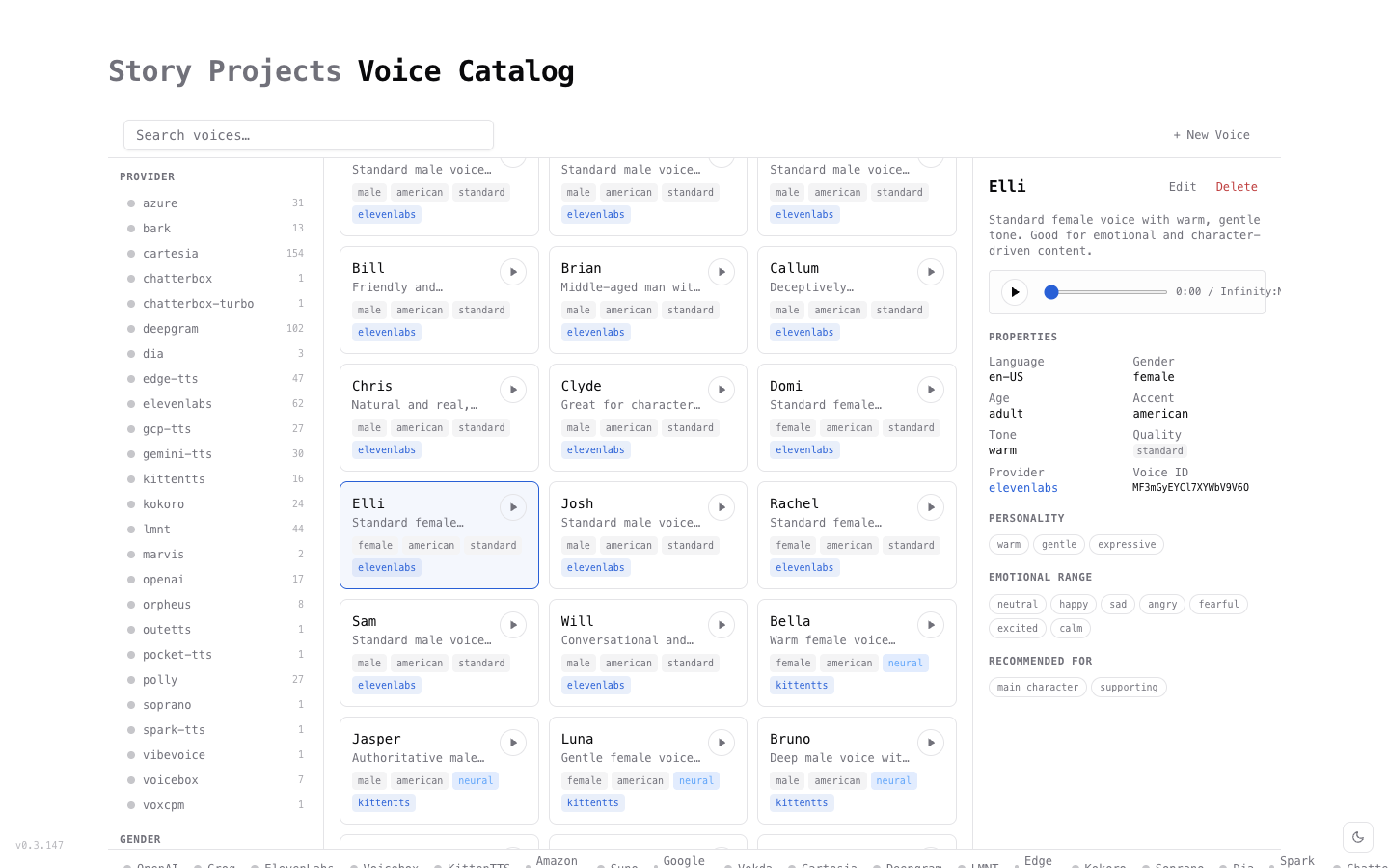
Select a voice to see full details:
- Audio preview — play a sample directly in the browser
- Properties — language, gender, age, accent, tone, quality, provider, Voice ID
- Personality — tags describing the voice character (e.g., warm, gentle, expressive)
- Emotional range — supported emotions (neutral, happy, sad, angry, fearful, excited, calm)
- Recommended for — suggested character roles (e.g., main character, supporting)